NoahFace can display alerts when users are identified. This can be used for a number of purposes, including:
Configuring Alerts
To specify an alert that should be delivered to all users, specify the "alert" option in your Access Point Type Screen Details. For example:
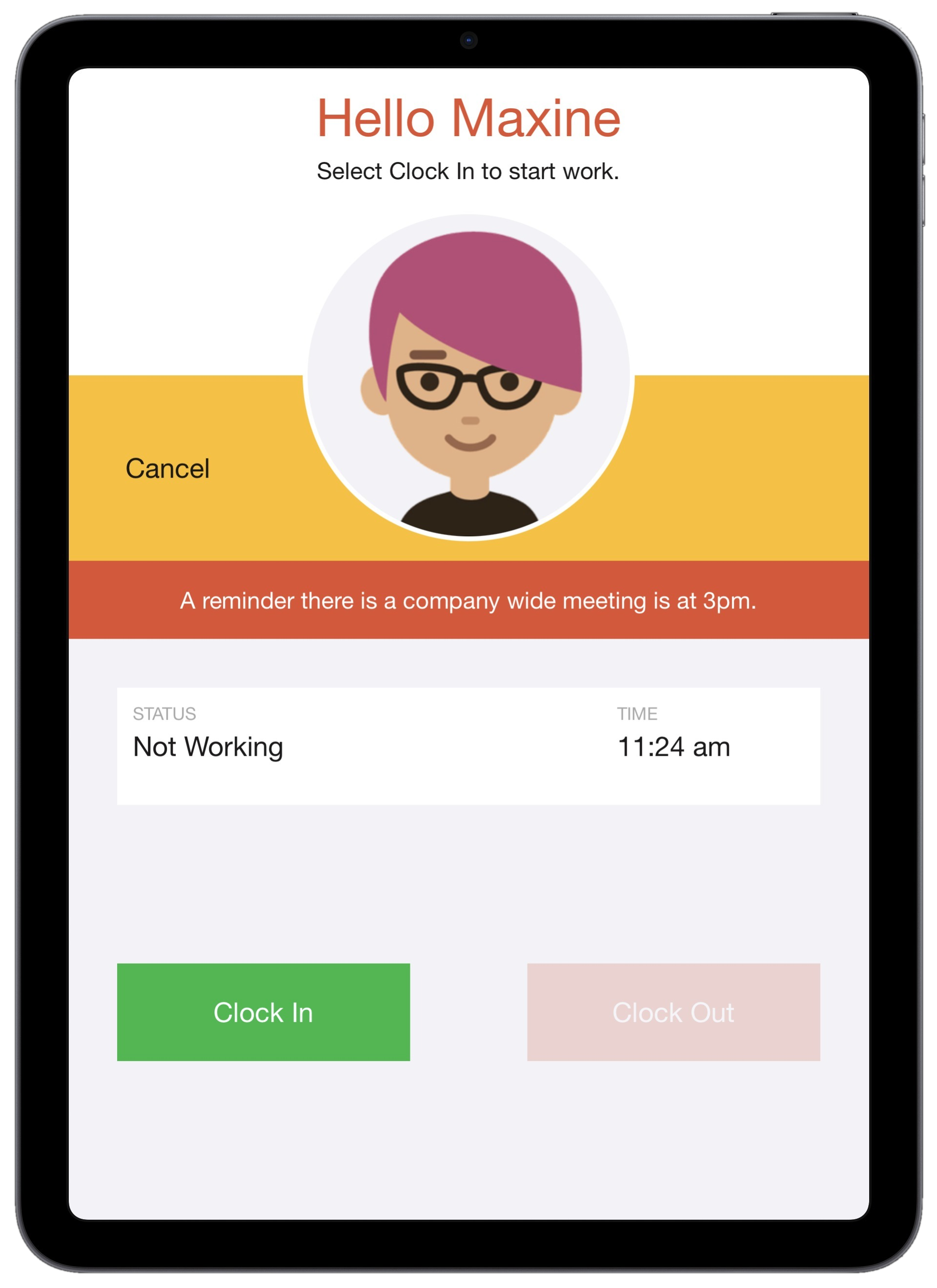
alert=A reminder there is a company wide meeting is at 3pm.
In the NoahFace iPad App, the alert is displayed in red in the middle of the screen:
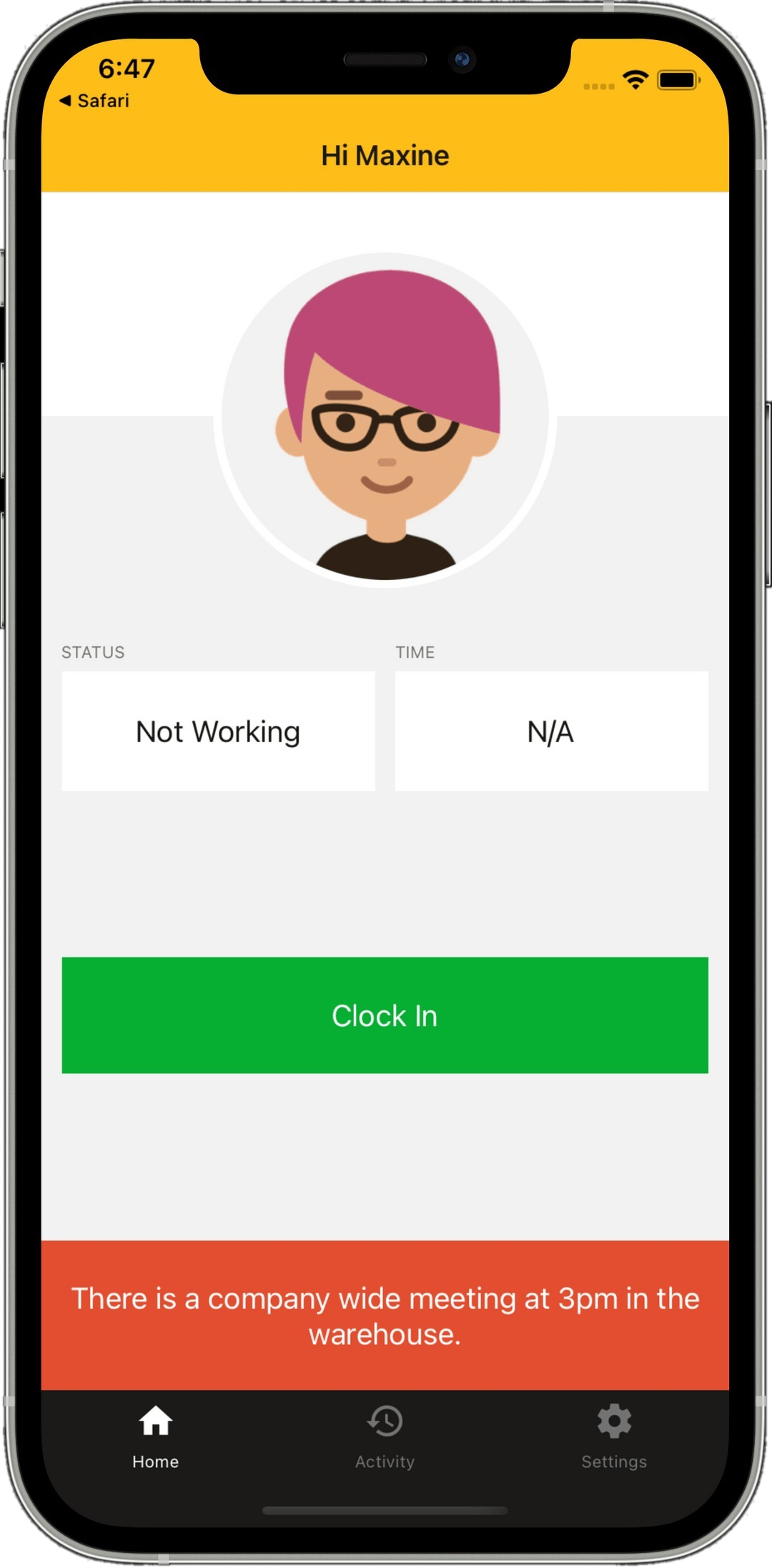
In the NoahFace Go mobile App, the alert is displayed in red at the bottom of the screen:
Conditional Alerts
To specify an alert that should only be delivered to users with a specific user type, specify the "alerttype" option. For example:
alert=Please conduct employee safety briefings this week.,
alerttype=Supervisor
You can specify multiple user types as a semi-colon separated list.
To specify an alert that should only be delivered to users in a specific team, specify the "alertteam" option. For example:
alert=There is a customer service team meeting at 3pm today.,
alertteam=Customer Service
You can specify multiple teams as a semi-colon separated list.
Clock In Alerts
To specify an alert that should only be delivered at clock in, specify the "inalert" option. For example:
inalert=Please take a 10 minute rest break every 4 hours.
Clock In alerts are only supported in the NoahFace iPad App.
Time Calculations
Clock In alerts can include time based information by including any of the following variables:
For example, to instruct workers to take their lunch break 4.5 hours after they clock in, you could specify:
inalert=Please start your lunch break no later than #IN+4.5
Time calculations are only supported in the NoahFace iPad App.
Was this article helpful?
That’s Great!
Thank you for your feedback
Sorry! We couldn't be helpful
Thank you for your feedback
Feedback sent
We appreciate your effort and will try to fix the article