TABLE OF CONTENTS
Synchronization of Phone Numbers
You to configure whether phone numbers are synchronized from your HR / payroll platform to NoahFace, and in cases where there are multiple phone numbers stored, which specific phone number is used. This is supported for the following HR / payroll platforms:
UKG Ready
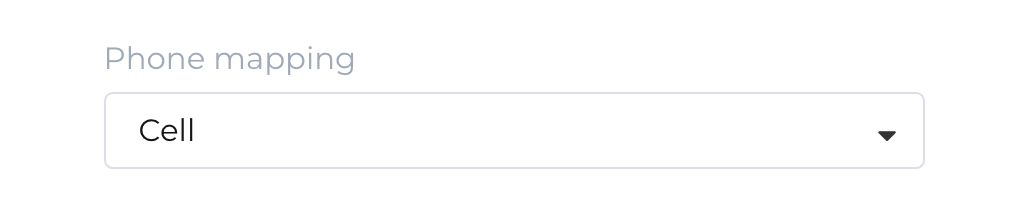
When you add a synchronization from UKG Ready, phone numbers are not synchronized by default. If you want to synchronize phone numbers to NoahFace (eg: so you can use them for SMS communications), you can set your Phone Mapping to either "Cell", "Home" or "Work" (normally you would set it to "Cell"):
UKG Pro Workforce Management
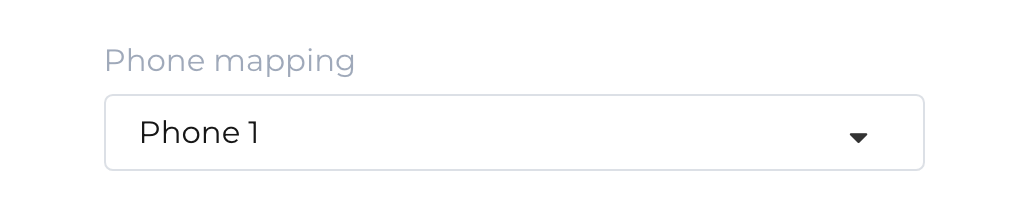
When you add a synchronization from UKG Pro Workforce Management (formerly UKG Dimensions), phone numbers are not synchronized by default. If you want to synchronize phone numbers to NoahFace (eg: so you can use them for SMS communications), you can set your Phone Mapping to either "Phone 1", "Phone 2" or "Phone 3":
isolved
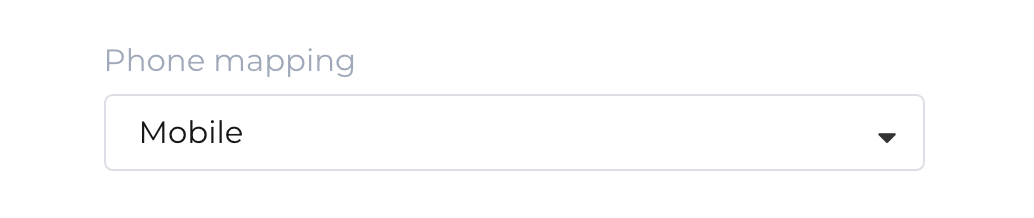
When you add a synchronization from isolved, phone numbers are not synchronized by default. If you want to synchronize phone numbers to NoahFace (eg: so you can use them for SMS communications), you can set your Phone Mapping to either "Home", "Mobile" or "Work" (normally you would set it to "Mobile"):
Communication Preference
You can configure how NoahFace sends registration details (eg: passcodes) and one-time access codes (eg: 2FA codes) to employees.
You can change this communication preference from the Security Settings menu in the NoahFace Dashboard:
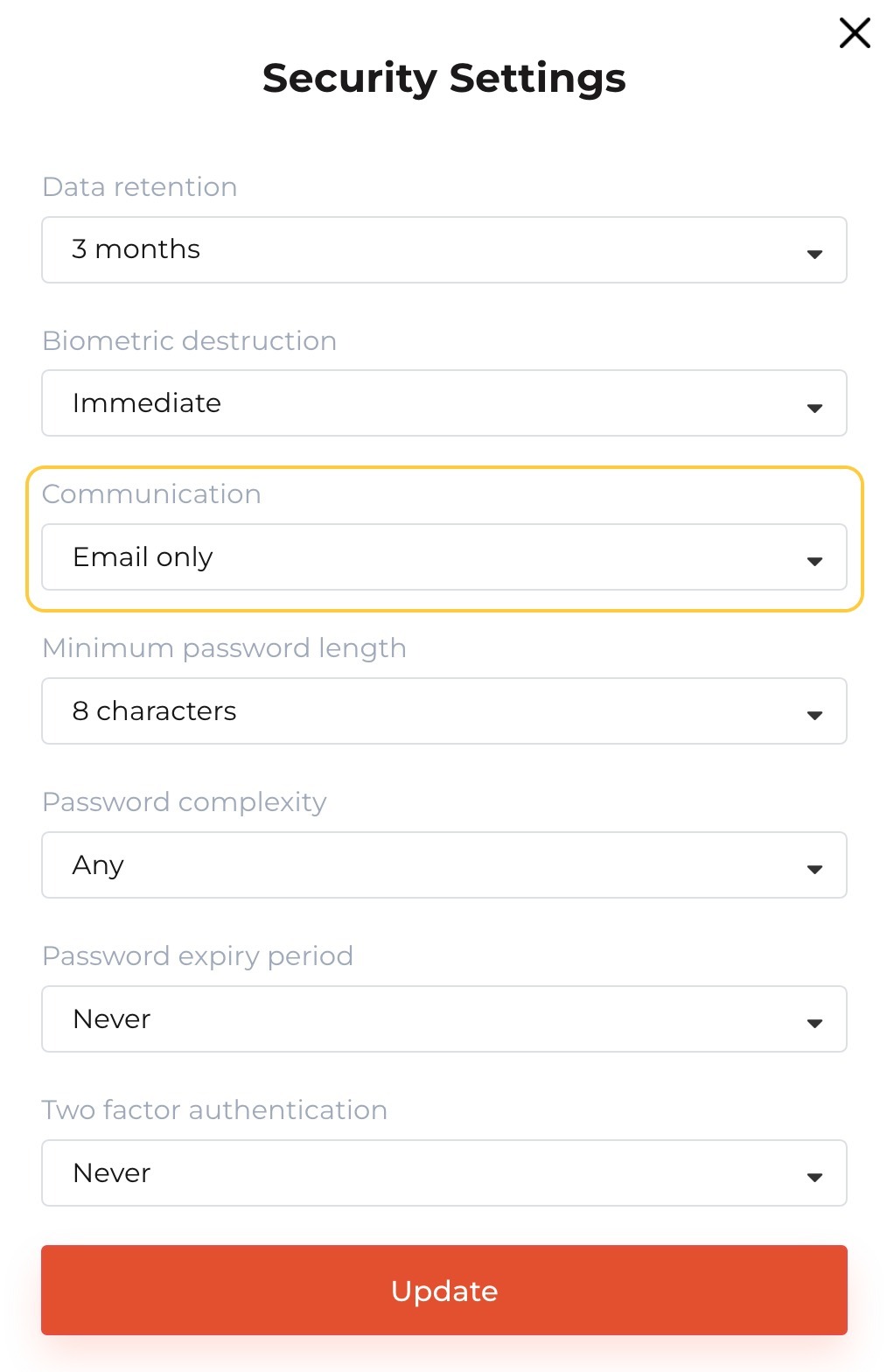
There are four options:
The default is Email Only.
If you want to communicate with employees via SMS, you should consider your local privacy and telecommunication regulations - in some jurisdictions (including in the US) you may require express / written consent from employees.
Express Consent to SMS
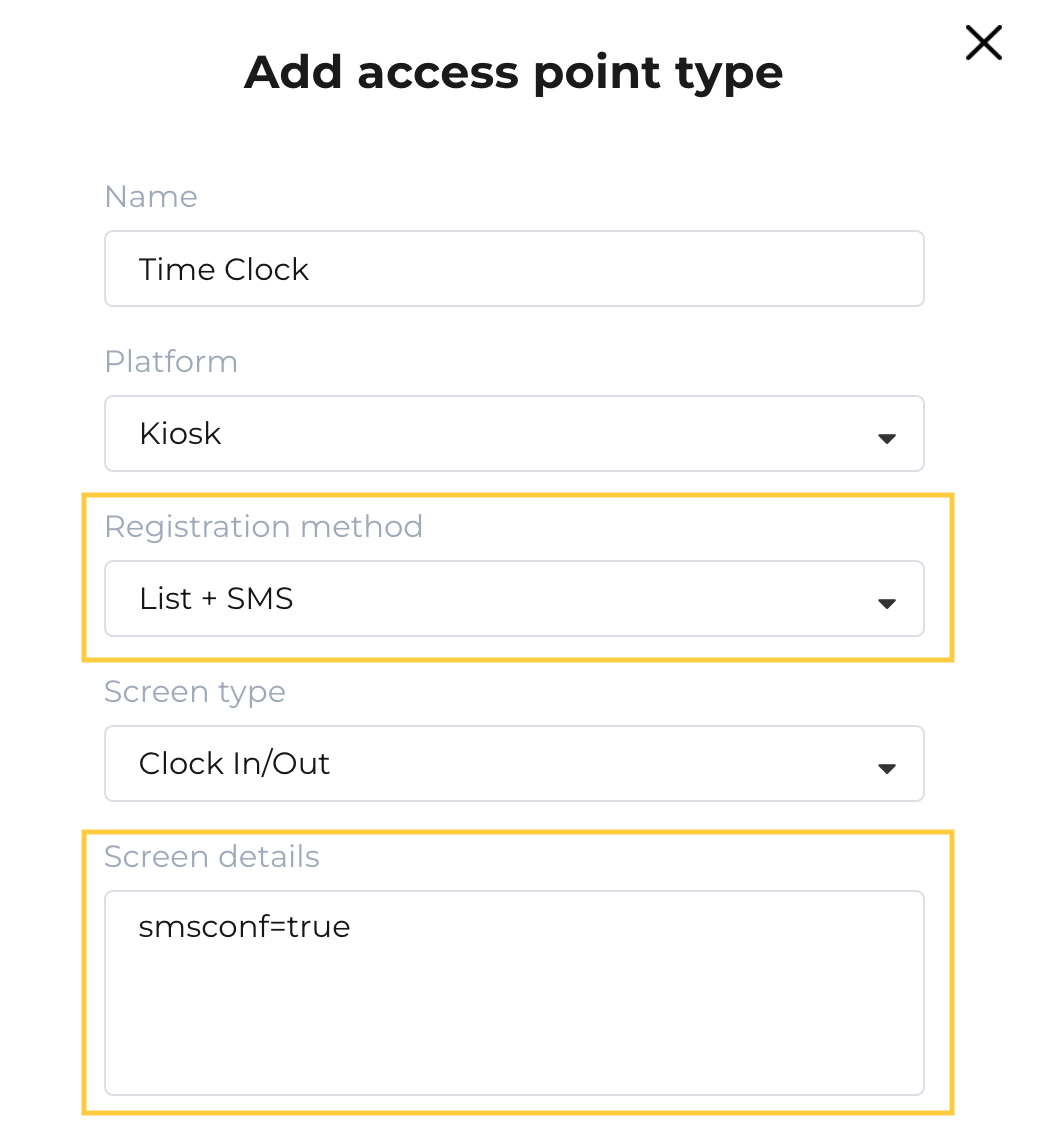
You can configure NoahFace to only send one-time registration codes to employees after they have expressly consented. To do this, set you registration method to "List + SMS" in your Access Point Type, and add the "smsconf" configuration option as follows:
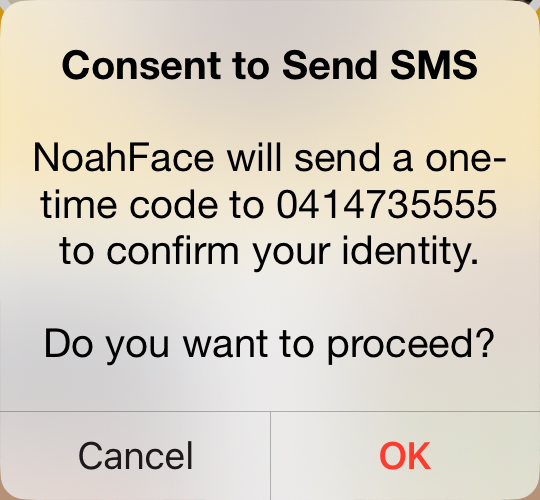
When an employee registers, they will first need to select themselves from the list of employees and provide their consent as follows:
They then need to enter the 6 digit code they receive on the following screen:
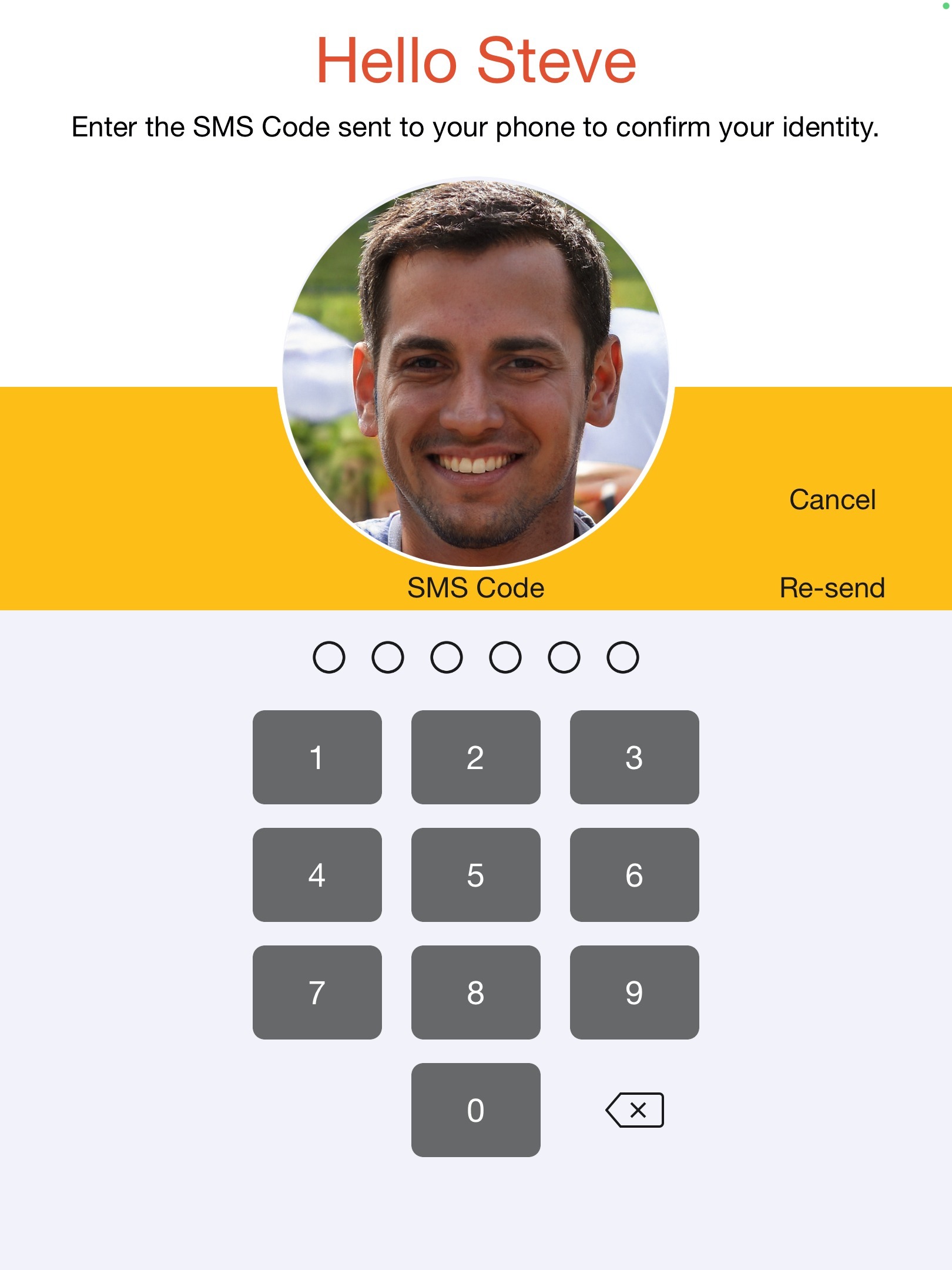
This two step registration process is designed to provide compliance with the US TCPA and regulations in other jurisdictions that require express / written consent for SMSs.
Was this article helpful?
That’s Great!
Thank you for your feedback
Sorry! We couldn't be helpful
Thank you for your feedback
Feedback sent
We appreciate your effort and will try to fix the article