TABLE OF CONTENTS
This Tech Note explains how to configure NoahFace when you have multiple work locations.
Managing Sites
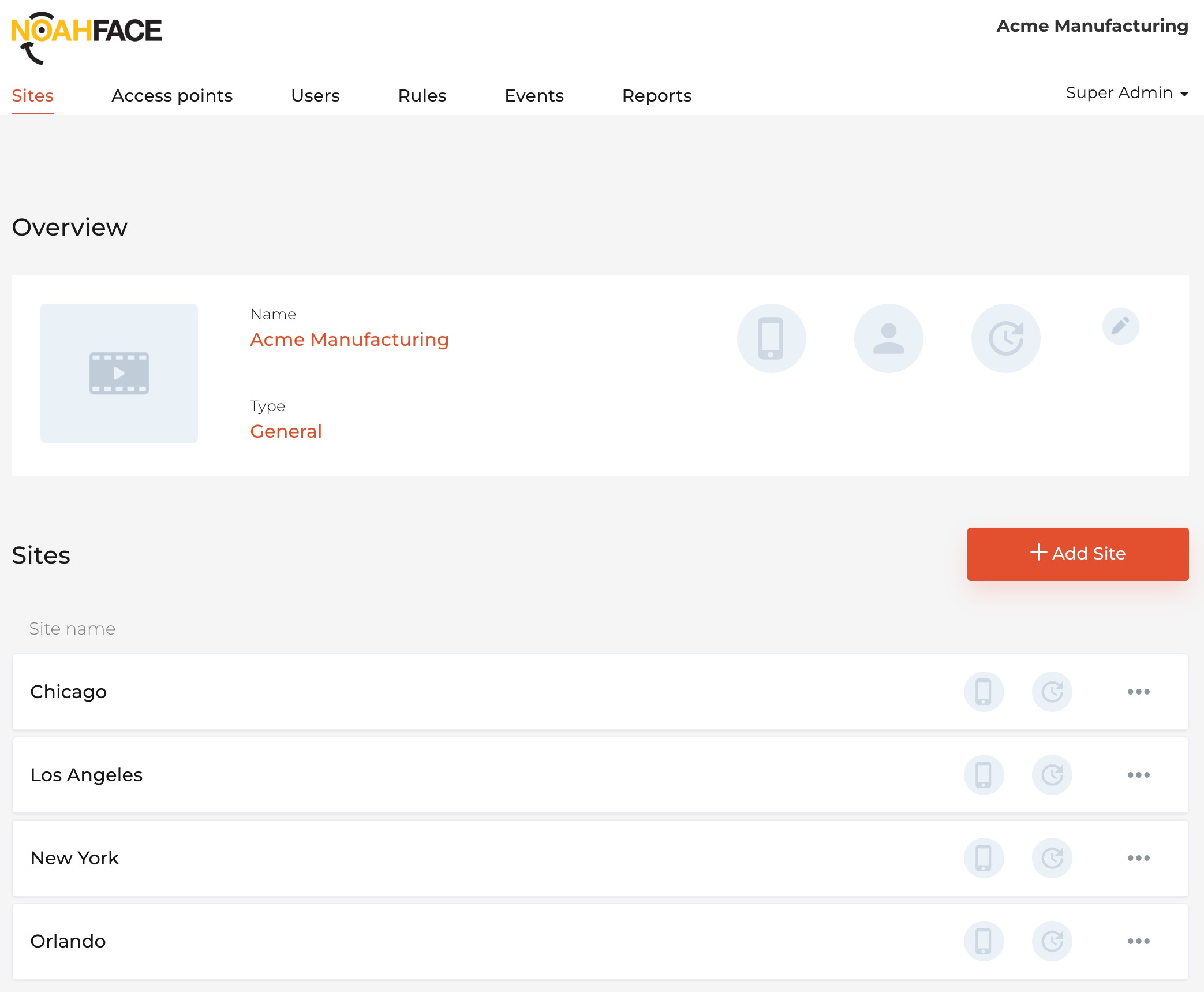
You should create one Site in NoahFace for each of your work locations. If you have a small number of work locations (ie: less than 10), you can generally create your Sites as a simple list. For example:
If you have a larger number of work locations, you should consider structuring them into a site hierarchy. Site hierarchies are most often structured so that the top level of the hierarchy is either a list of countries, states, or franchise owners. For example:
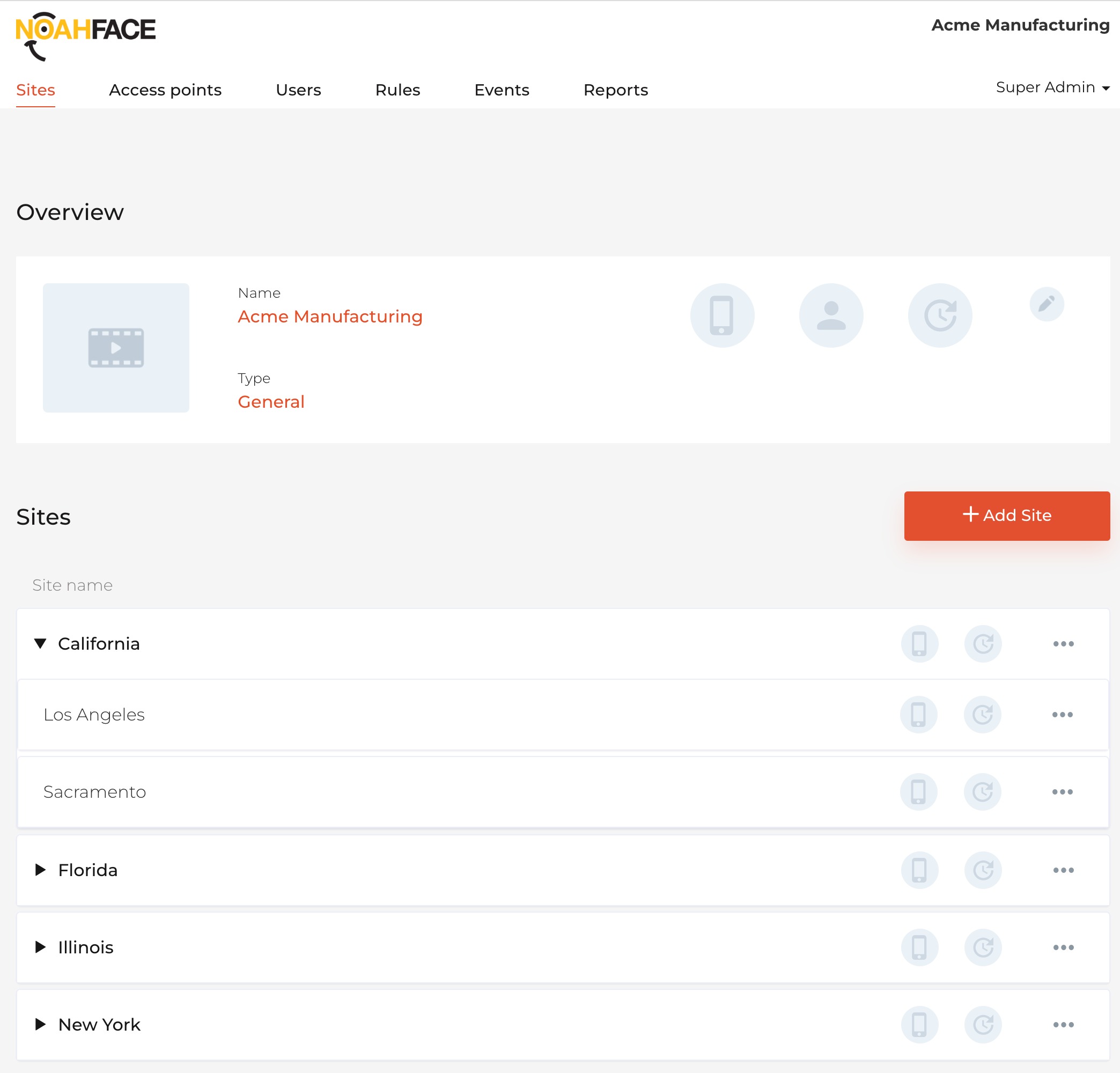
Site hierarchies not only simplify the management of your work locations, but they also allow you to apply security and perform reporting at any level of the hierarchy.
User Site
Each user in NoahFace has a default or primary Site which is set by the user synchronization process. This source of this attribute depends on which HR / Payroll Platform you are using:
Workday
Each user's Site is automatically set to their primary Location in Workday - no additional configuration is needed.
Dayforce
Each user's Site is automatically set to their primary Location in Dayforce - no additional configuration is needed.
UKG Pro Workforce Management
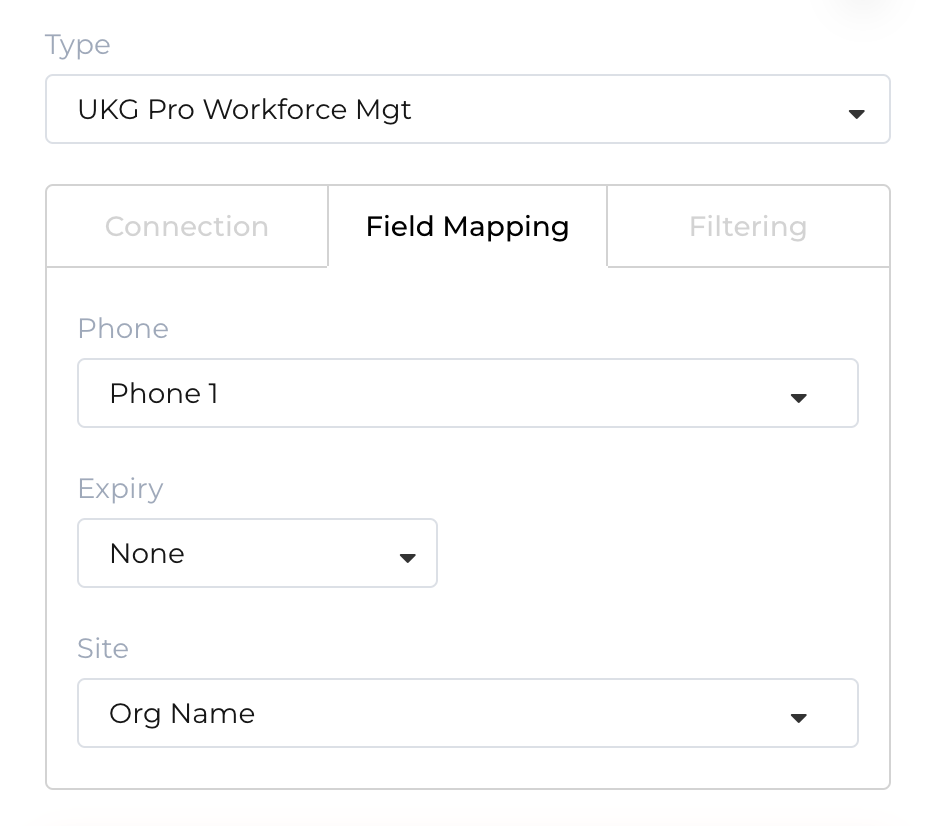
For UKG Pro Workforce Management (formerly UKG Dimensions), to set the Site attribute for each user:
UKG Ready
To set the Site attribute for each user:
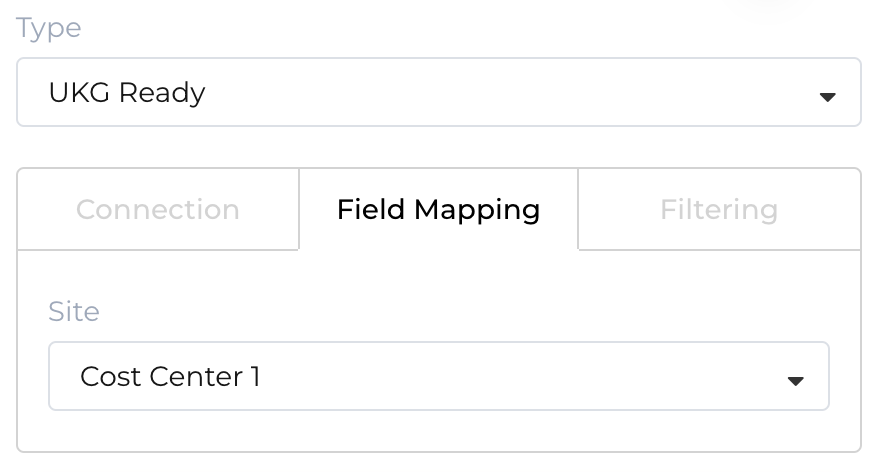
Each user's Site will then be automatically set to their primary work location in UKG Ready.
isolved
Each user's Site is automatically set to their Location in isolved - no additional configuration is needed if this meets your requirements.
Alternatively, you can specify the name of an Organization Field or Miscellaneous Field that contains each user's site in the Site field on the Field Mapping tab or your user synchronization:
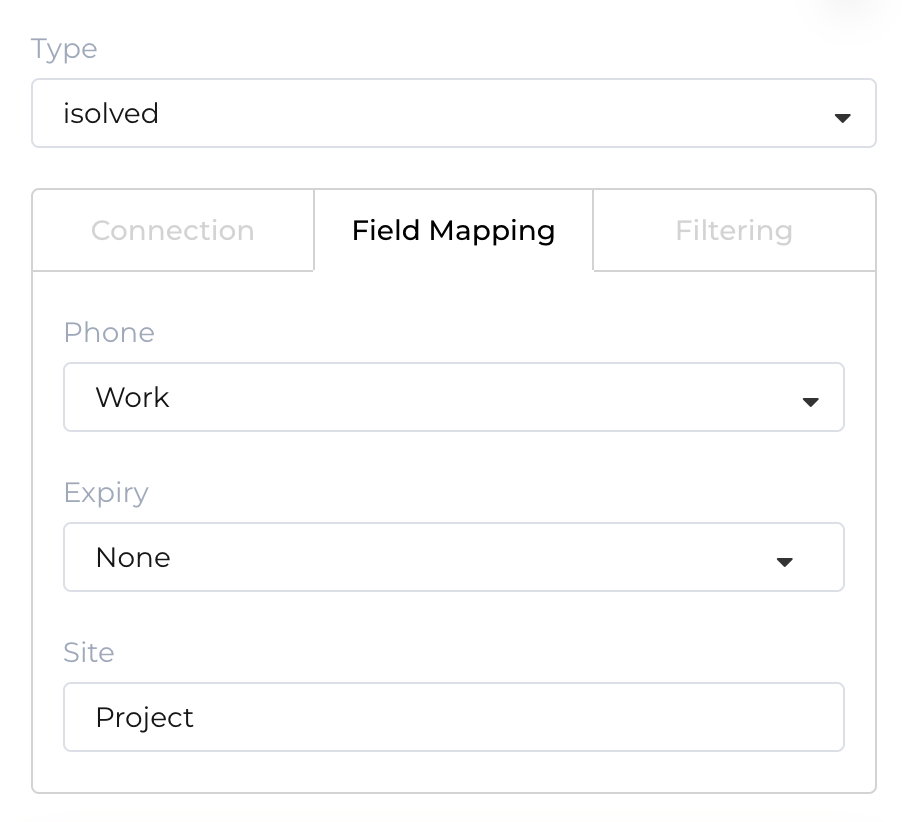
Each user's Site will then be automatically set to their assigned value for this Organization Field or Miscellaneous Field in isolved.
Employment Hero Payroll
For Employment Hero Payroll (formerly KeyPay), to set the Site attribute for each user:
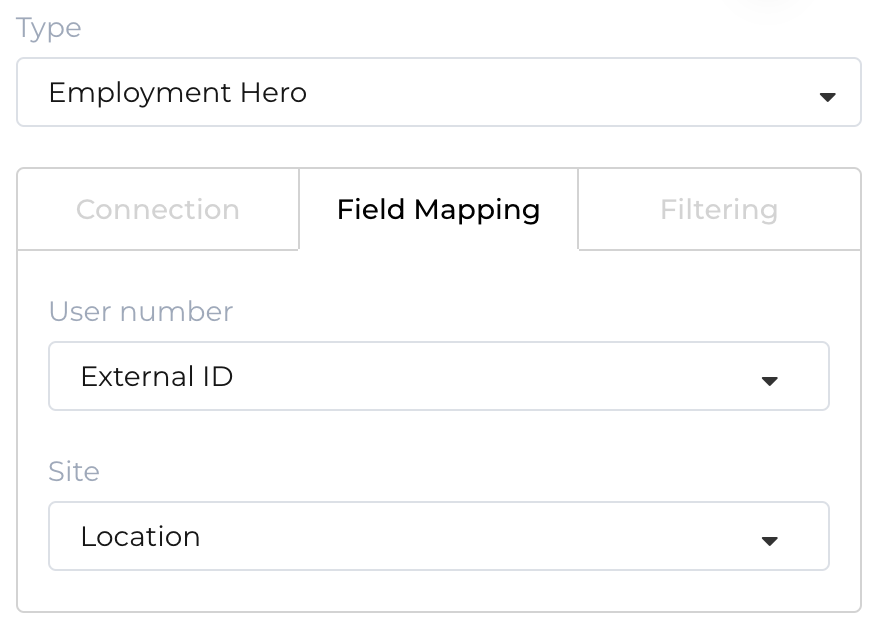
Access Rules
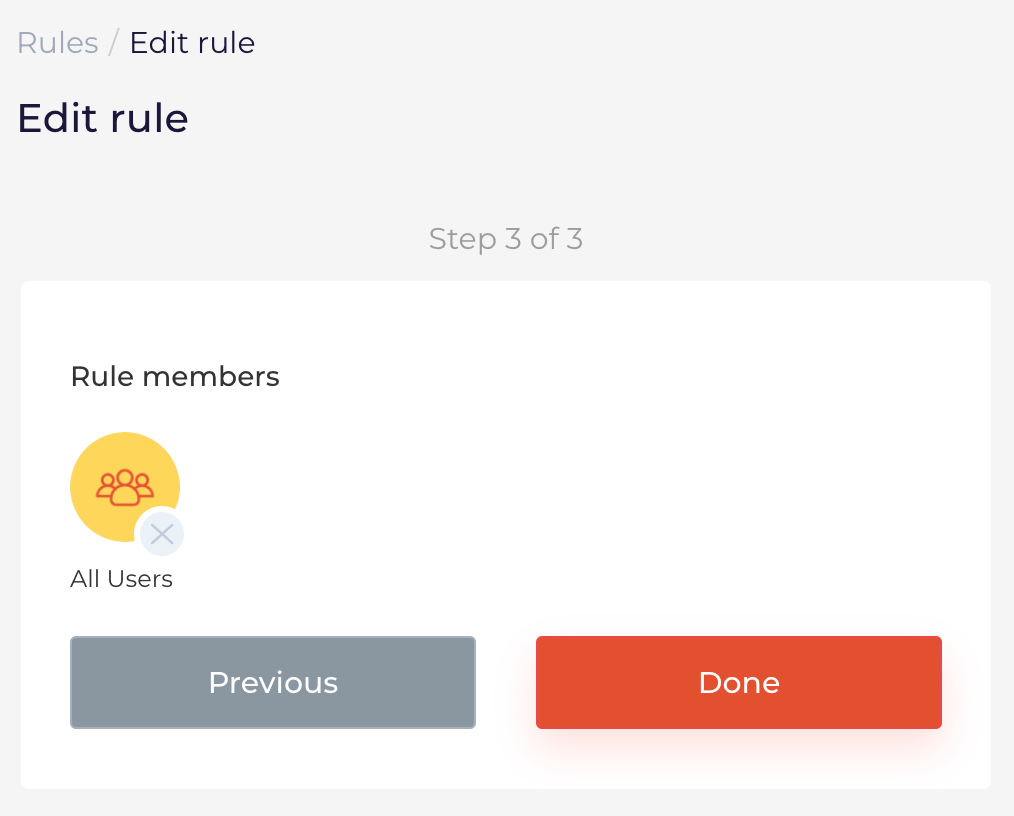
If your employees work across all of your work locations, you can use the default "All Access" rule, which applies to "All Users":
If your employees only work at their primary Site (including any sub-sites in your site hierarchy), you should edit the default "All Access" rule, changing it to apply to "Site Users". You might also like to add any global groups that you would like to have access to all sites, such as "System Administrators":
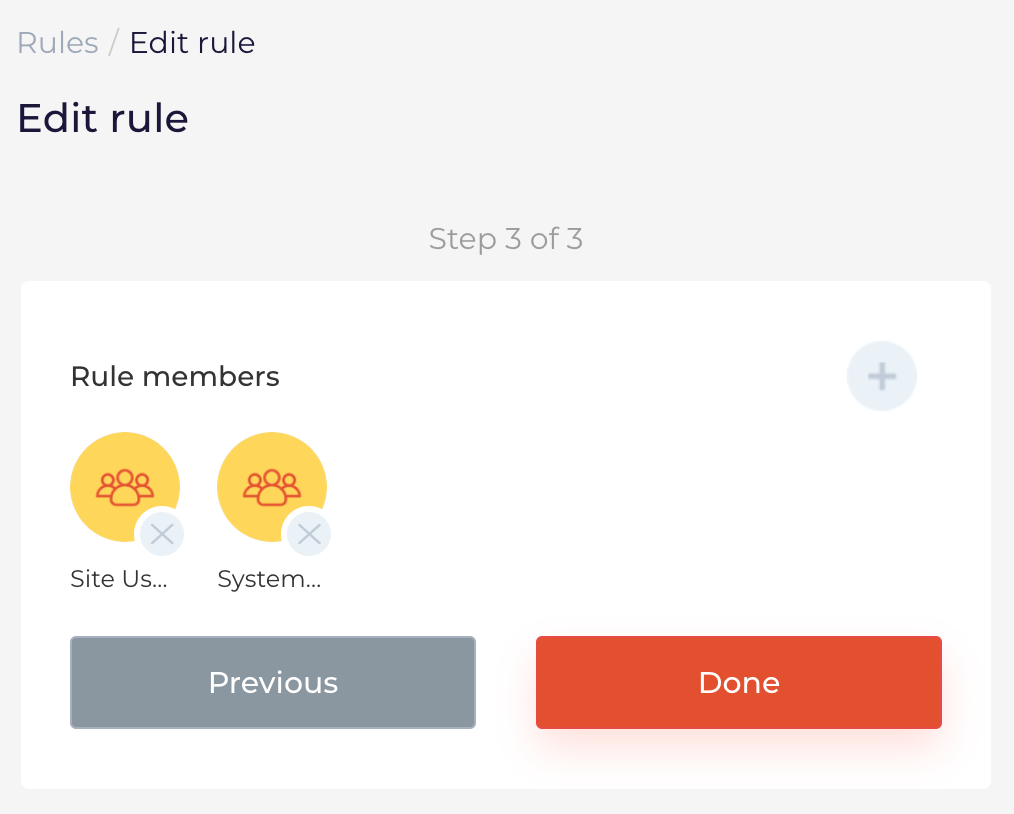
In the vast majority of cases the you can use a single access Rule, applying to "Site Users", to control access to your sites. In the rare circumstances that your workers need to work at a combination of sites that you cannot arrange into a hierarchy, you can create multiple access Rules and use groups to assign access as appropriate.
Dashboard Access
When you provide a user access to the NoahFace Dashboard, you can either provide them full access or you can limit the Scope of their access to a nominated Site (and any sub-sites). This is done when you add or edit their Role as follows:
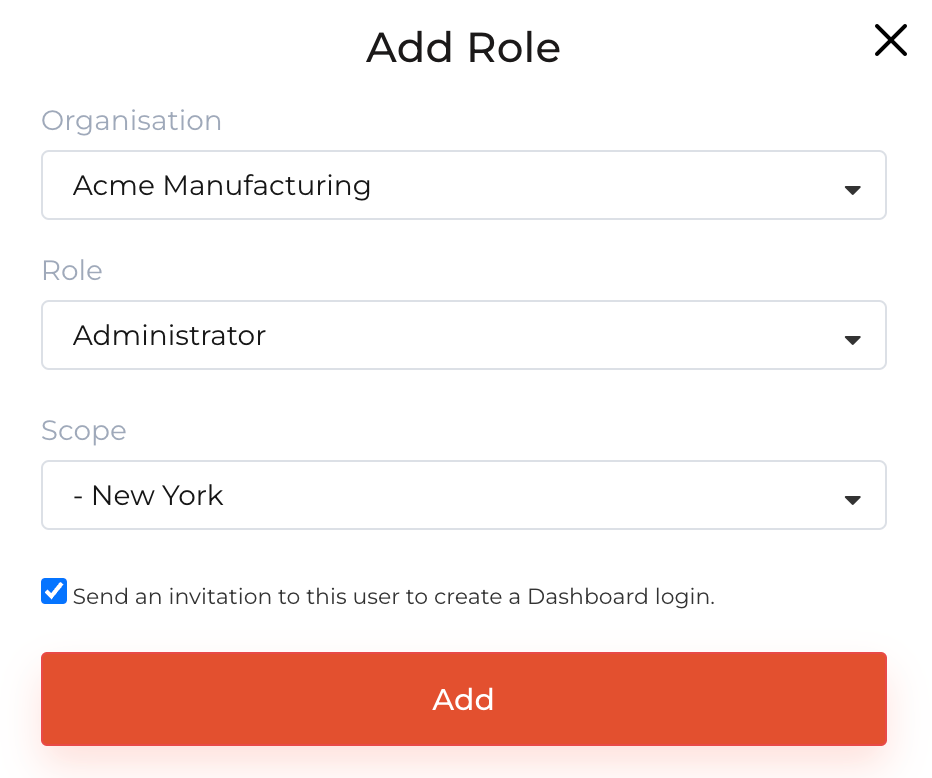
An Administrator with a limited Scope will only be able to manage nominated Site (and any sub-sites). A Manager or Viewer with limited Scope will only have visibility of users who are associated with the nominated Site (any any sub-sites).
Was this article helpful?
That’s Great!
Thank you for your feedback
Sorry! We couldn't be helpful
Thank you for your feedback
Feedback sent
We appreciate your effort and will try to fix the article