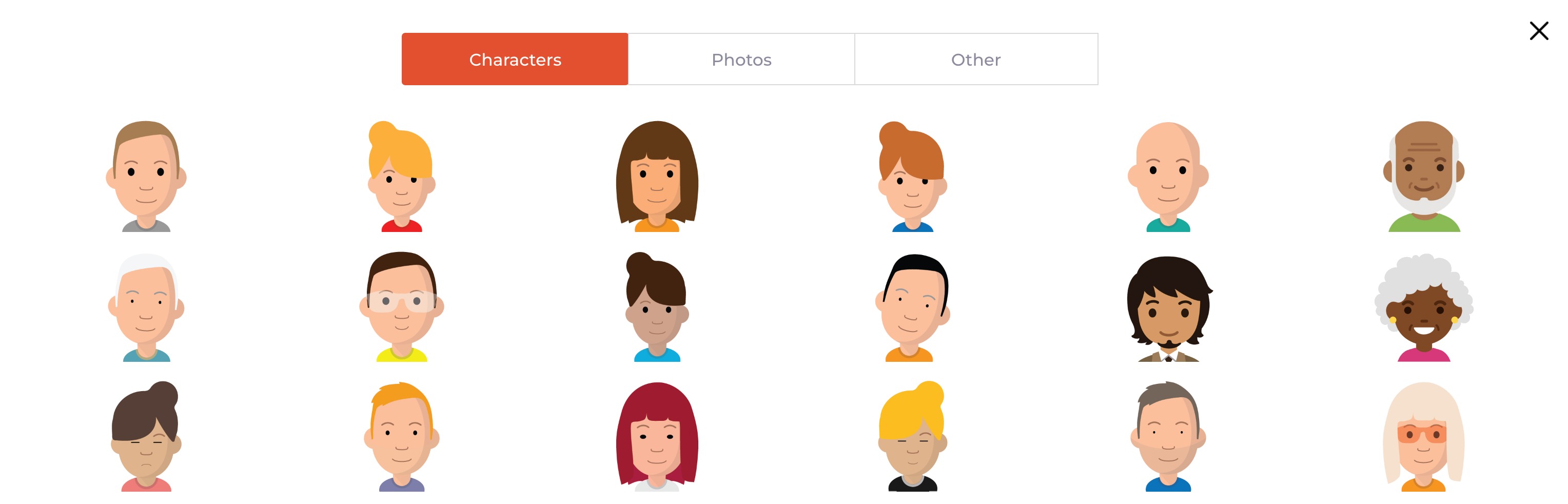
Each user in NoahFace has an associated profile picture, which can be either a an avatar or a photo.
iPad App
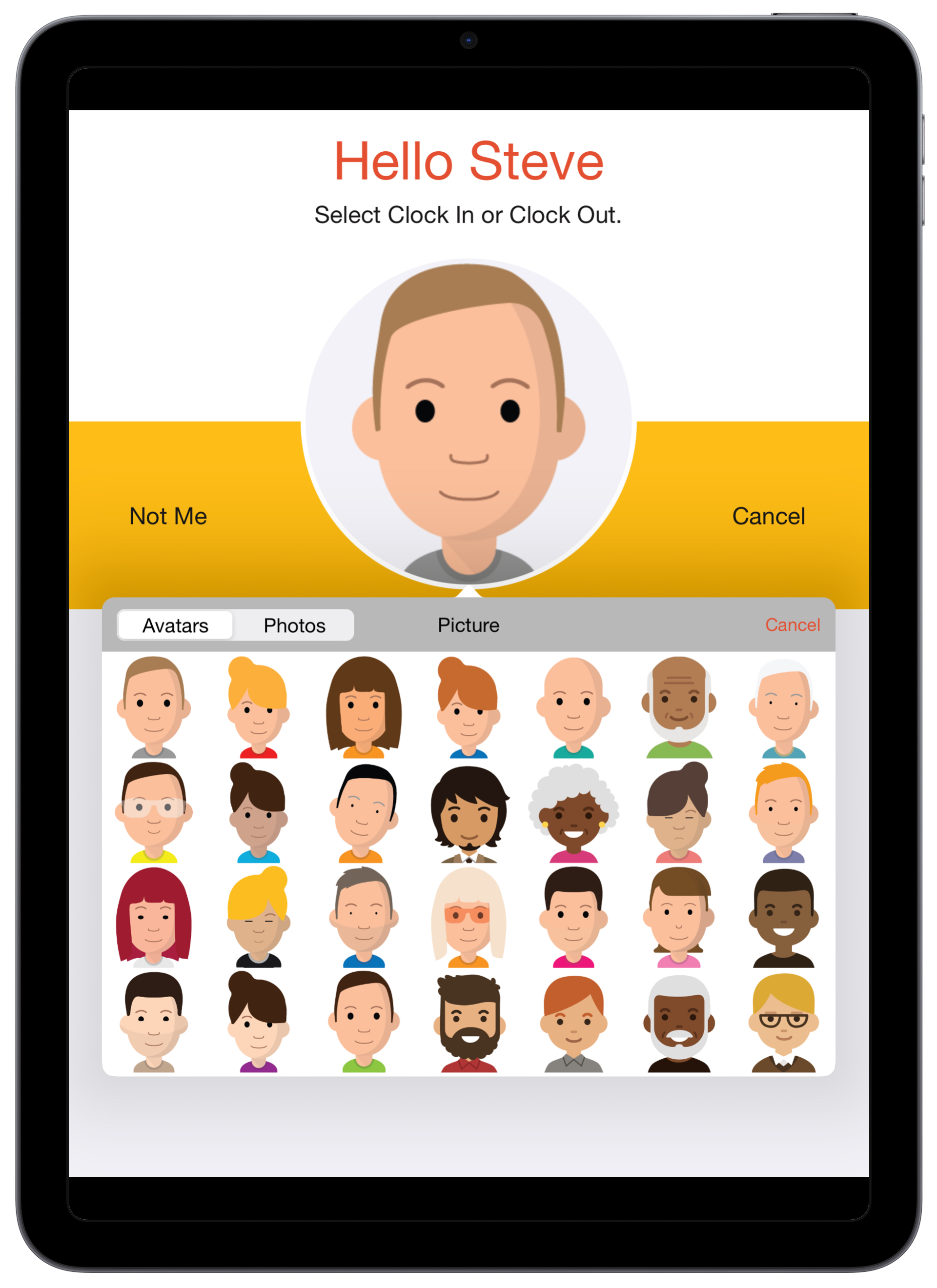
In the NoahFace iPad App, a user's profile picture is displayed under their name and helps employees confirm that they have been correctly identified.
To change their profile picture, they simply touch the current profile picture as shown below.
You can restrict the options available to workers by specifying the "pictures" option as "all", "avatars", "photos", or "none" in your Screen Details. For example:
pictures=photos
Mobile App
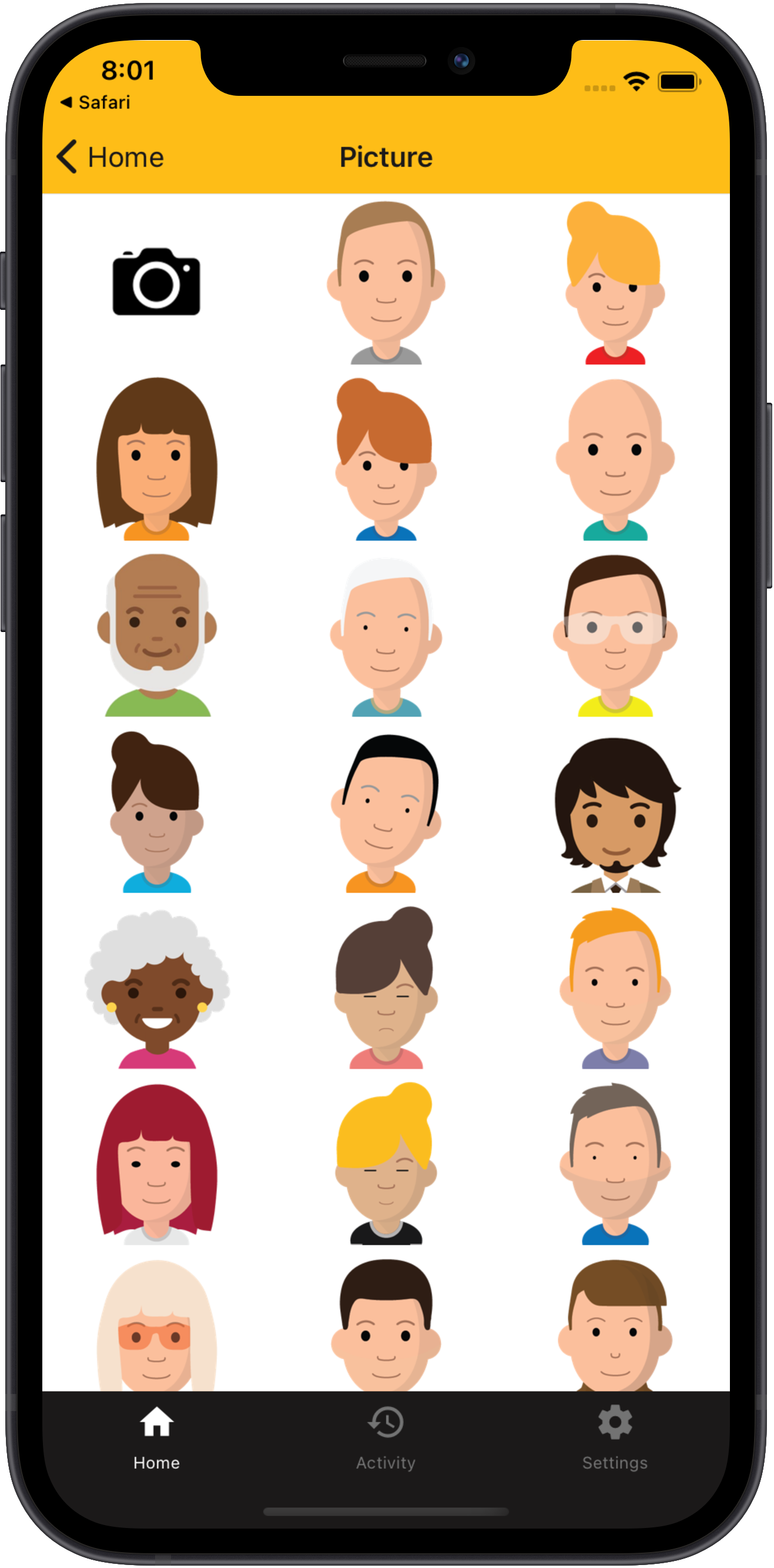
In the NoahFace mobile App, a user's profile picture is displayed under their name on the home page.
To change their profile picture, they simply touch the current profile picture as shown below.
You can restrict the options available to workers by specifying the "pictures" option as "all", "avatars", "photos", or "none" in your Screen Details. For example:
pictures=photos
It is also possible to replace the profile picture with the NoahFace logo by specifying:
pictures=noahface
This is useful if you are using Rotating QR Codes and you have Liveness Detection enabled.
Dashboard
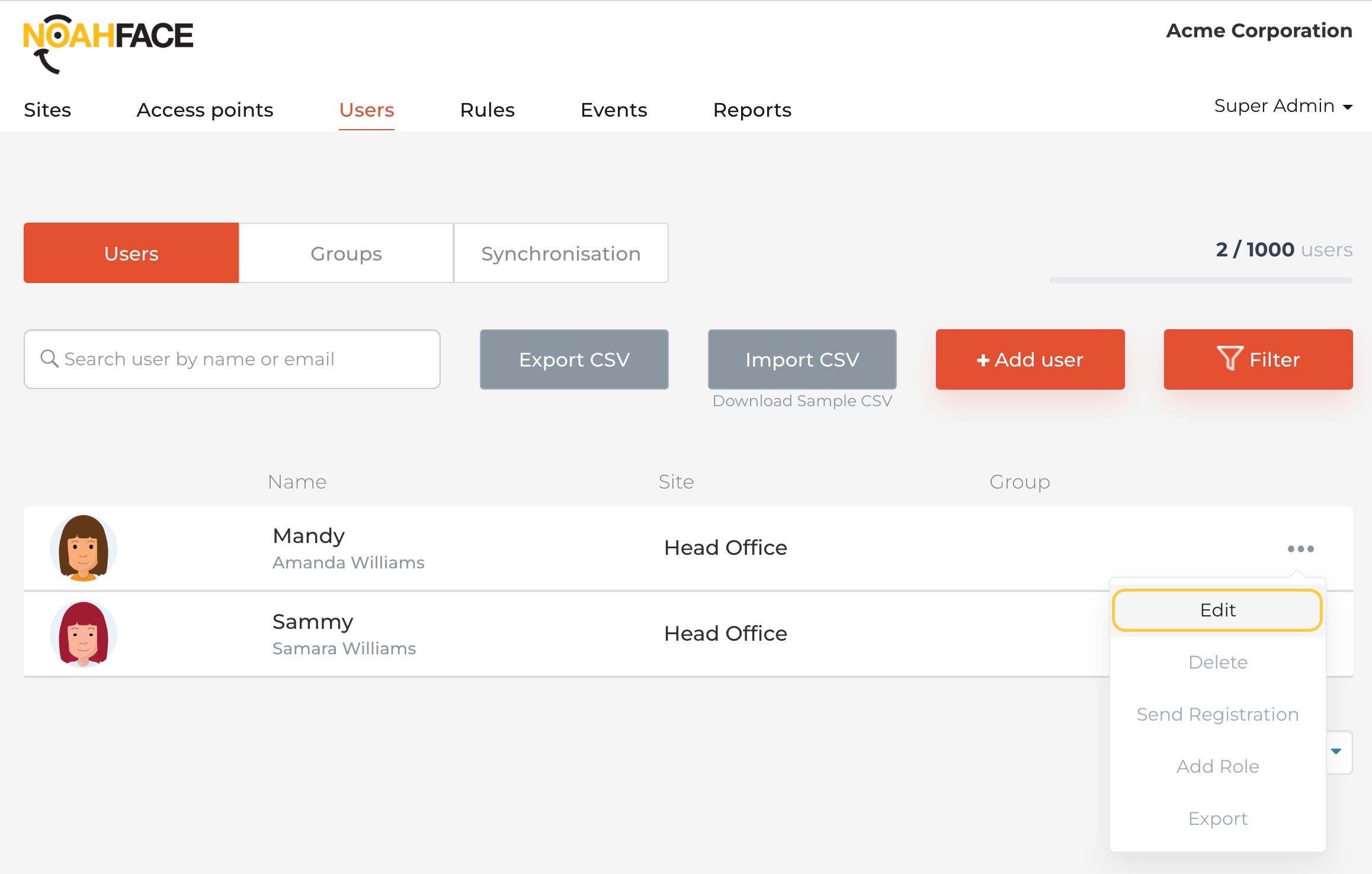
Administrators and Managers can change a user's profile picture from the NoahFace Dashboard by selecting the Edit menu next to the user:
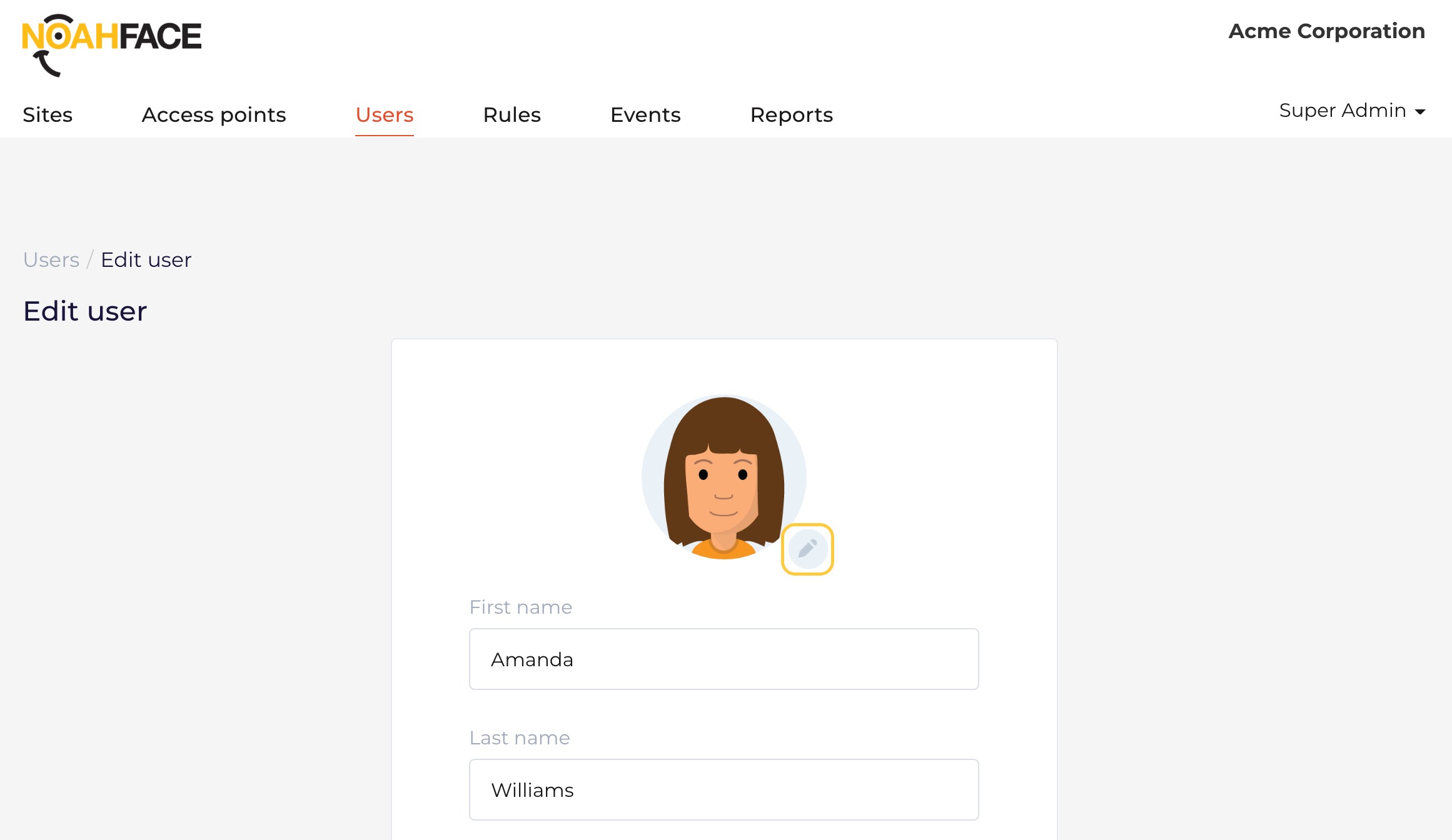
Then select the Edit button next to their profile picture:
Then select the an avatar or a photo as appropriate:
Finally, press the Update button to save your change.
Was this article helpful?
That’s Great!
Thank you for your feedback
Sorry! We couldn't be helpful
Thank you for your feedback
Feedback sent
We appreciate your effort and will try to fix the article