Drug testing is often used in industries such as:
to improve workplace safety.
Using NoahFace it is possible to randomly select workers for drug testing, creating a deterrent without the expense of testing every worker. NoahFace can operate in one of two ways, either:
These two approaches are described below.
Testing Before Clock In
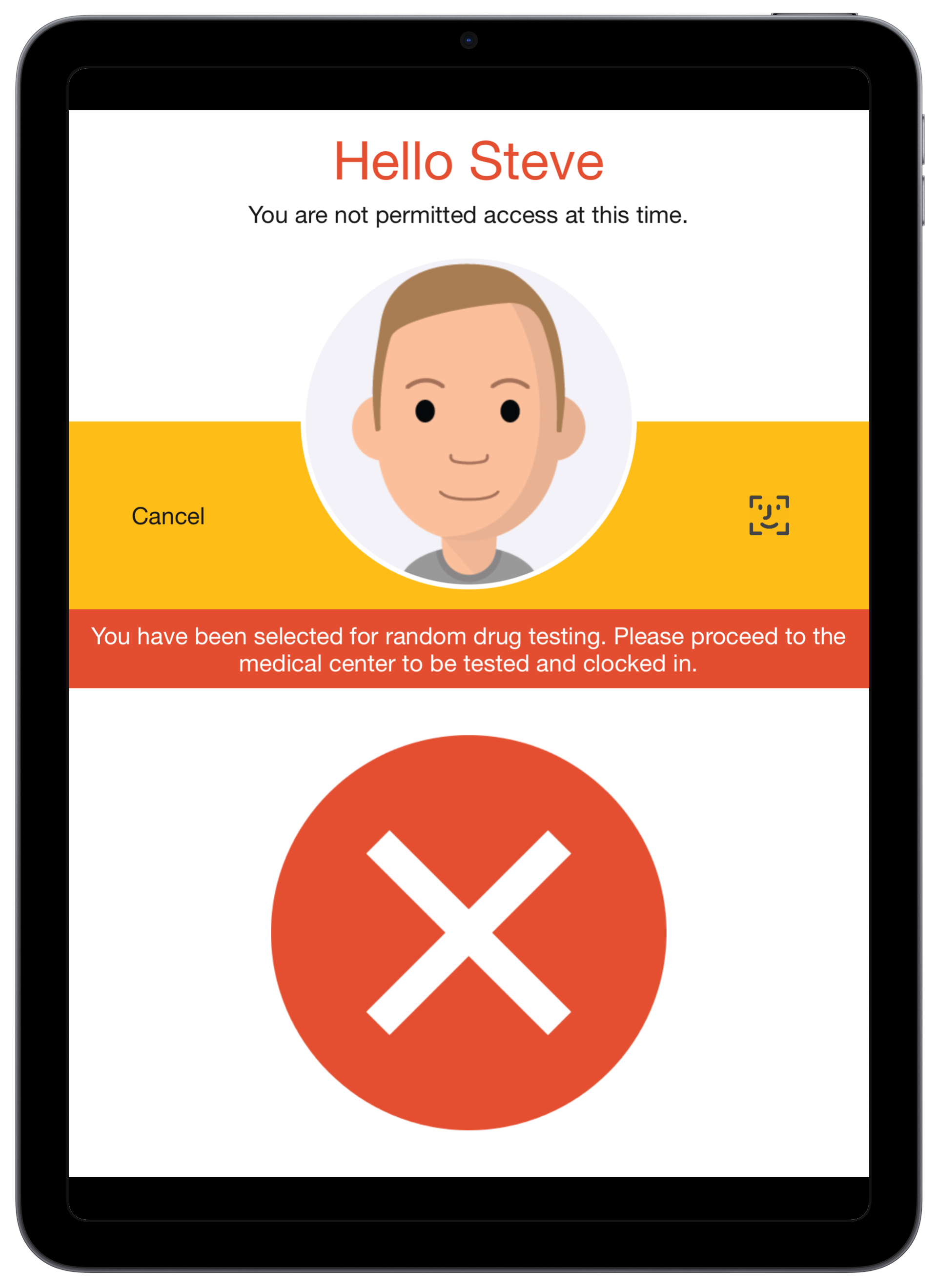
With this approach, a random selection of workers will be randomly denied access and will see a message that directs them to proceed to an appropriate location to be tested and clocked in.
Once testing has been completed, a supervisor would clock the worker in (eg: using the NoahFace Go mobile App), backdating their clock in time and recording data as appropriate.
You would normally use this approach if you have multiple iPads per site.
User Experience
Once configured, a random selection of workers will see a message such as the following when they attempt to clock in:
Example Without Data Entry
If you have no data being collected at clock in, you might configure your Access Point Type as follows:
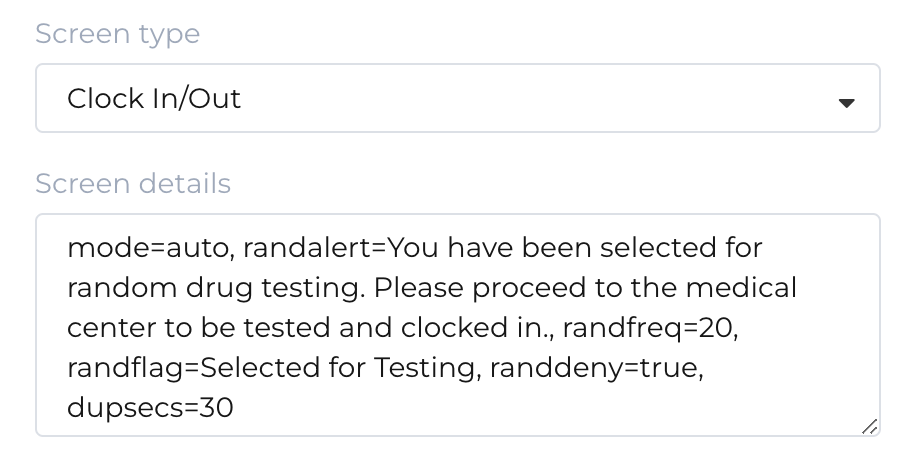
mode=auto,
randalert=You have been selected for random drug testing. Please proceed to the medical center to be tested and clocked in.,
randfreq=20,
randflag=Selected for Testing,
randdeny=true,
dupsecs=30
Example With Data Entry
If you have data being collected at clock in, you might configure your Access Point Type as follows:
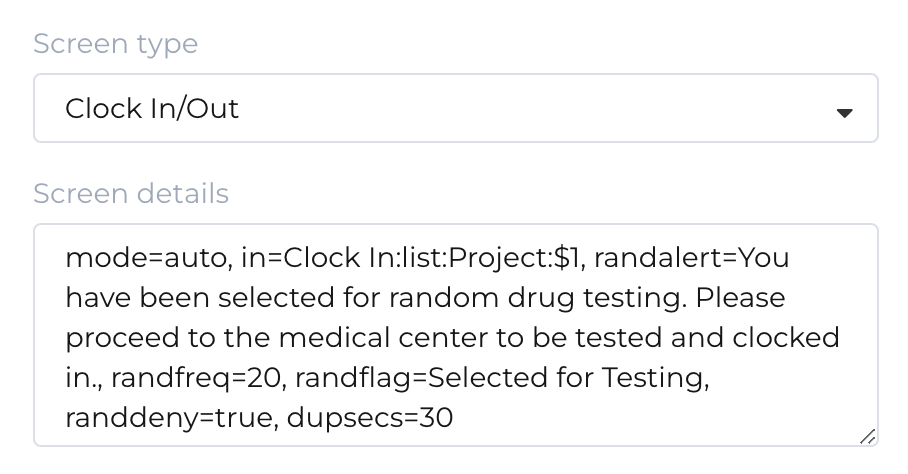
mode=auto,
in=Clock In:list:Project:$1,
randalert=You have been selected for random drug testing. Please proceed to the medical center to be tested and clocked in.,
randfreq=20,
randflag=Selected for Testing,
randdeny=true,
dupsecs=30
Testing After Clock In
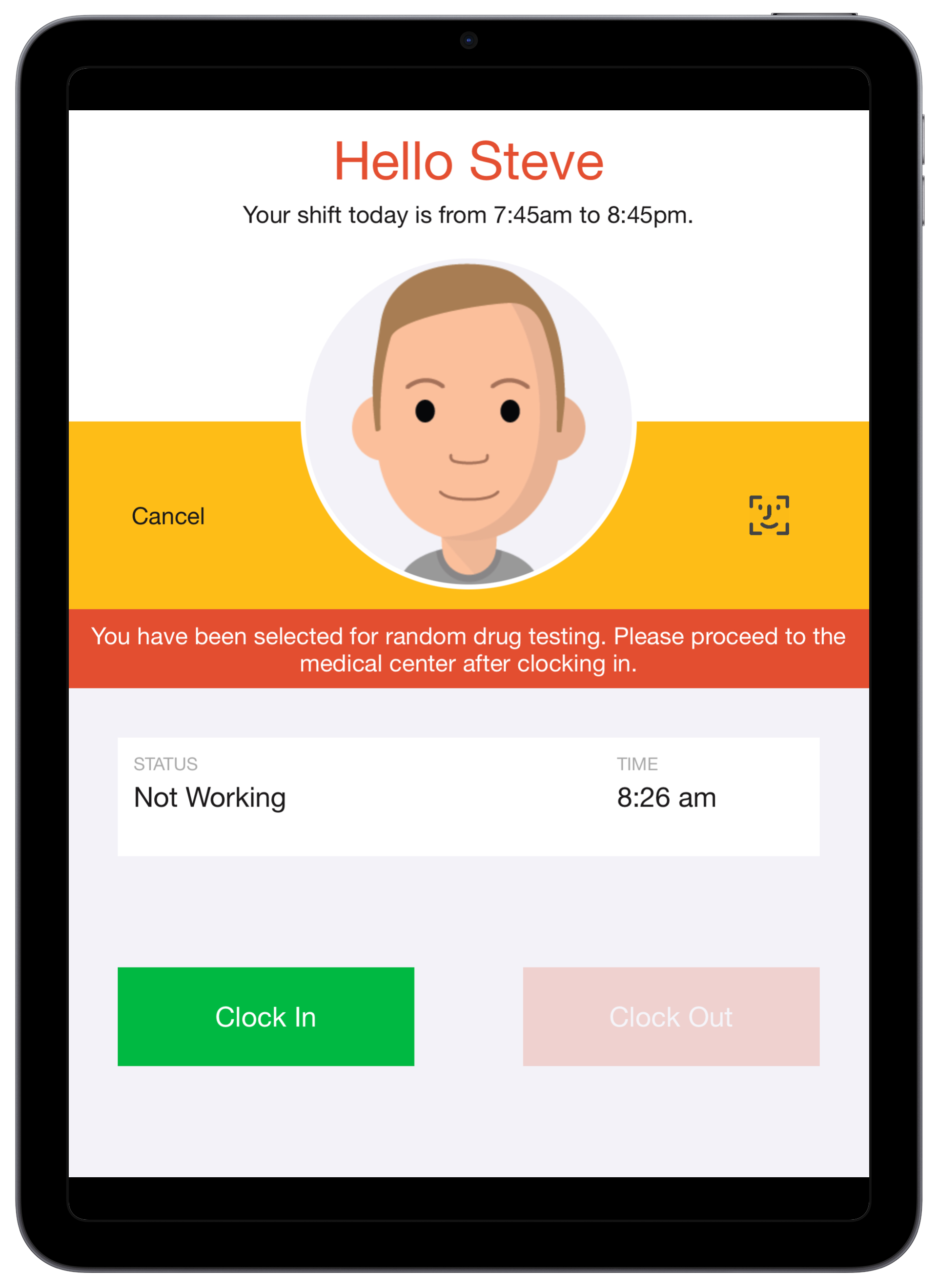
With this approach, all workers will be allowed to clock in, but a random selection of them will see a message that directs them to proceed to an appropriate location to be tested.
You would normally use this approach if you have one iPad per site.
User Experience
Once configured, a random selection of workers will see a message such as the following when they attempt to clock in:
Example Without Data Collection
If you have no data being collected at clock in, you might configure your Access Point Type as follows:
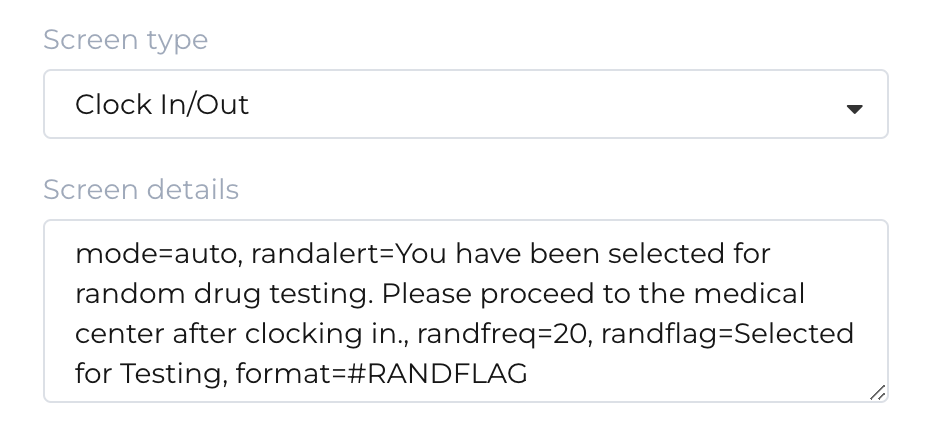
mode=auto,
randalert=You have been selected for random drug testing. Please proceed to the medical center after clocking in.,
randfreq=20,
randflag=Selected for Testing,
format=#RANDFLAG
Example With Data Collection
If you have data being collected at clock in, you might configure your Access Point Type as follows:
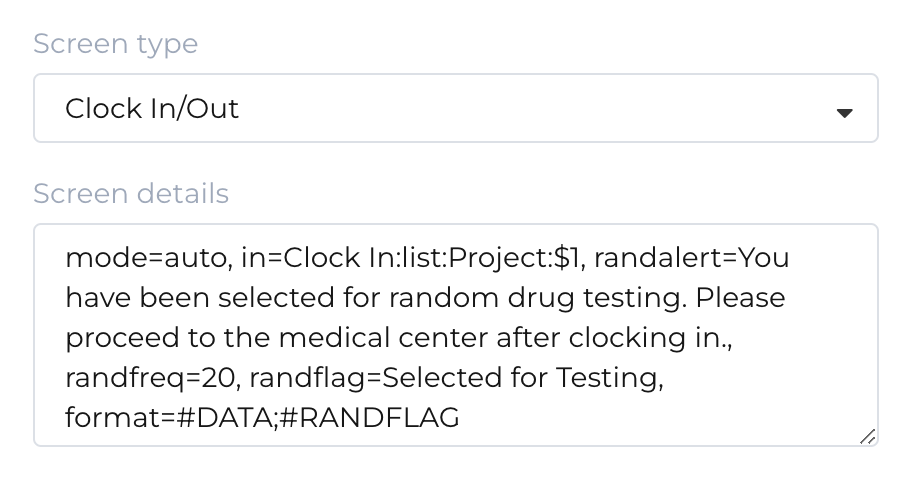
mode=auto,
in=Clock In:list:Project:$1,
randalert=You have been selected for random drug testing. Please proceed to the medical center after clocking in.,
randfreq=20,
randflag=Selected for Testing,
format=#DATA;#RANDFLAG
Configuration Details
Random selection is only available in the Clock In/Out screen and only in modes that track the clocking status of each user (eg: Auto Mode, Break Mode, Task Mode, etc).
The following configuration options can be added to your Screen Details:
Reporting on Selected Workers
To get a list of selected workers you should use the Event Details report listing events that contain your selection flag value as follows:

This might result in a report such as the following:
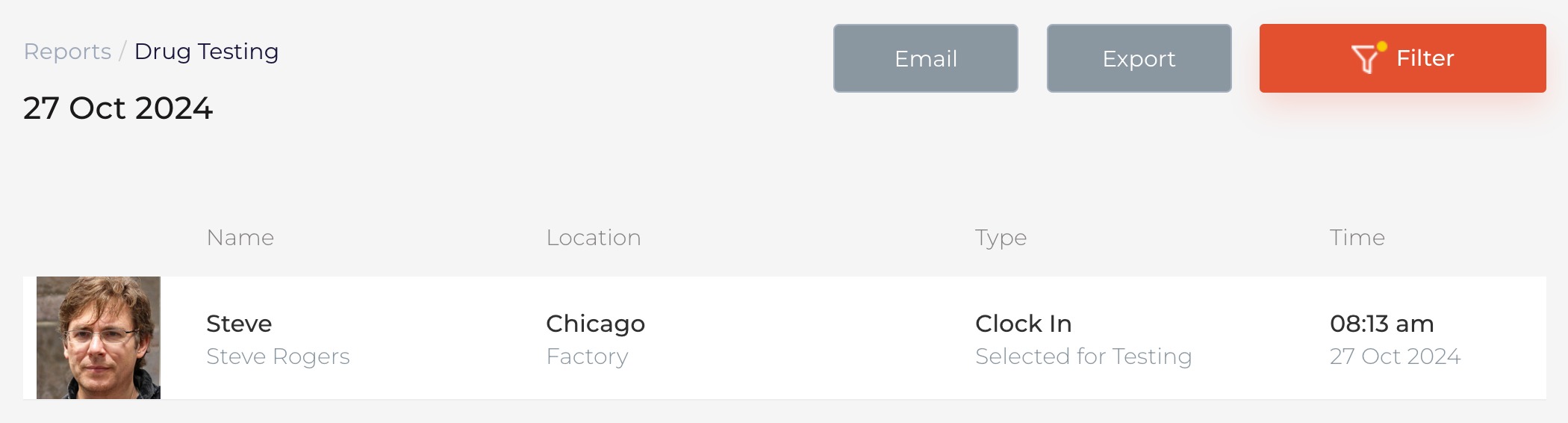
This report can be used to confirm that everyone flagged for testing has been tested, and you can use scheduling to automatically generate and deliver this report at an appropriate time of day.
Was this article helpful?
That’s Great!
Thank you for your feedback
Sorry! We couldn't be helpful
Thank you for your feedback
Feedback sent
We appreciate your effort and will try to fix the article